
Watch the video tutorial for a visual walkthrough
Before mapping products, make sure your online store is connected to the AK Dropshipping. Once connected, your store orders will automatically appear in the Orders - Unrecognized section.
In this guide, we’ll walk you through three methods to map product variants with AK Dropshipping.
Request A Quote
In Orders- Unrecognized section, you can ask your private salesman for the quote on Whatsapp or just click Ask for Quote button.
Once the salesman finish the quotation, click the View the Quote button and you can see a link given by your salesman. Open this link to review all product details.
Note:If everything looks good, you’re ready to start mapping the product.
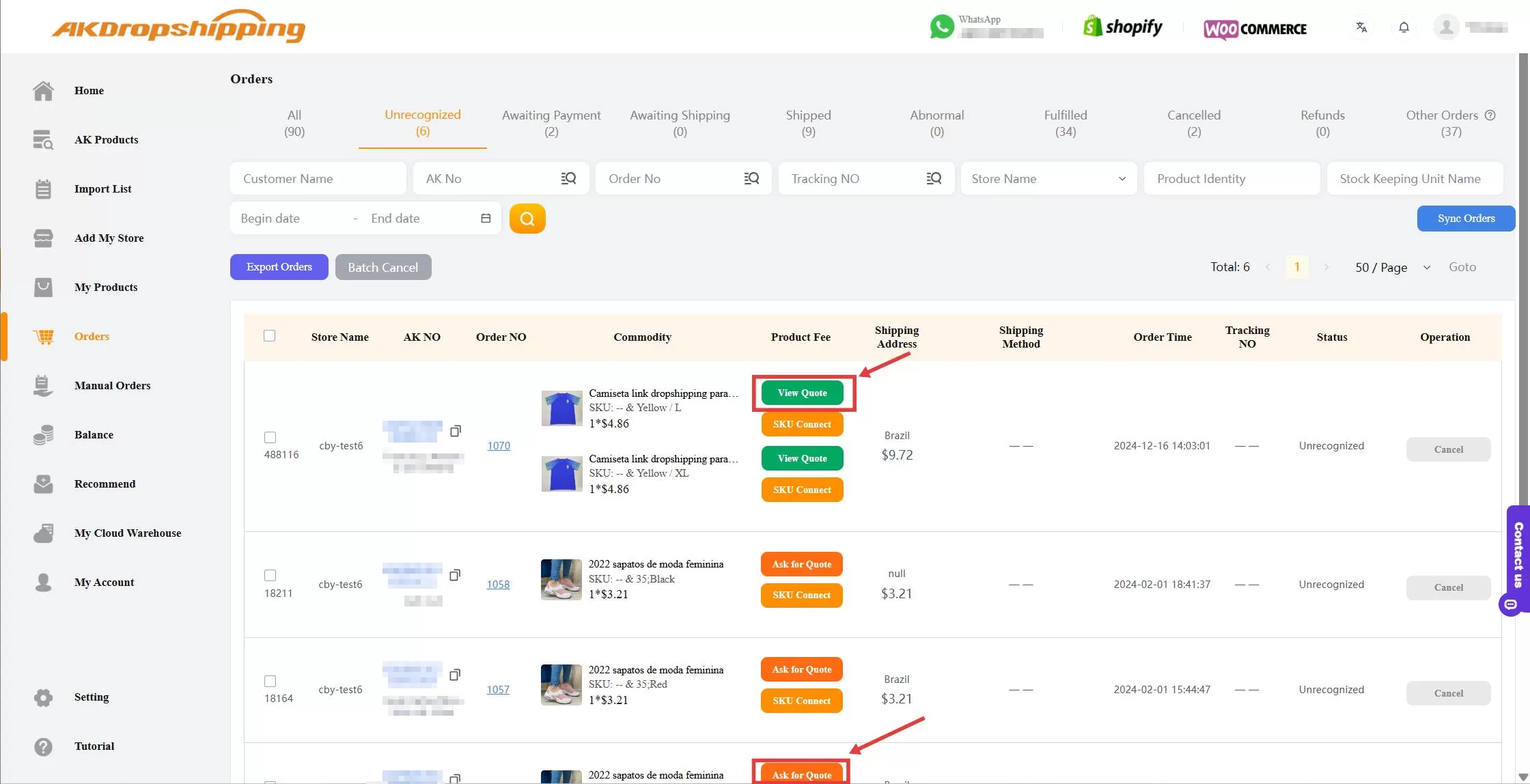
Orders - Unrecognized
Method 1: Quick Mapping via “Connect” Button
In the Orders - Unrecognized section, click the Connect button after viewing quote
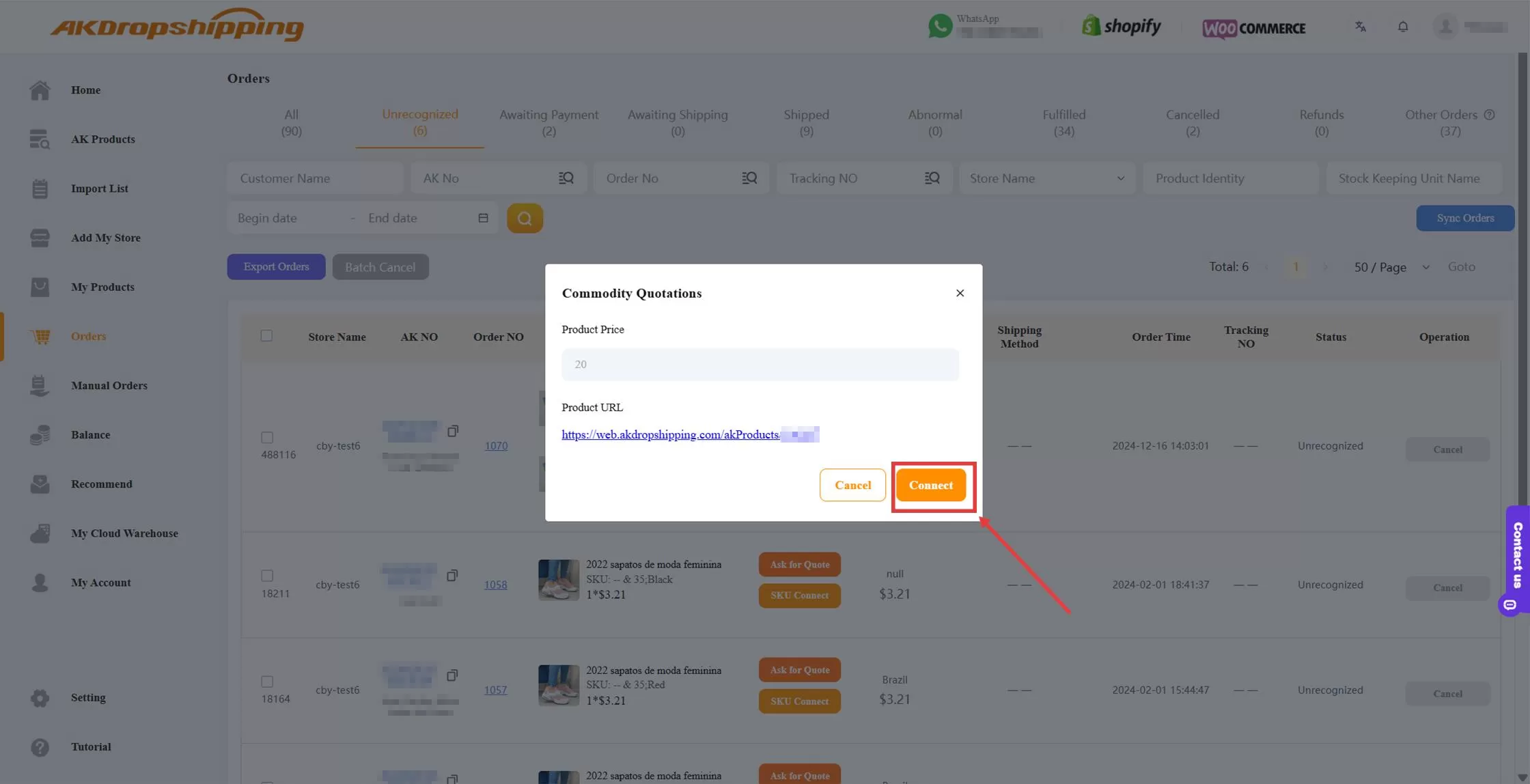
View Quote Panel
Select the appropriate variants
Choose your destination country and preferred shipping method
Click Connect again to complete the mapping
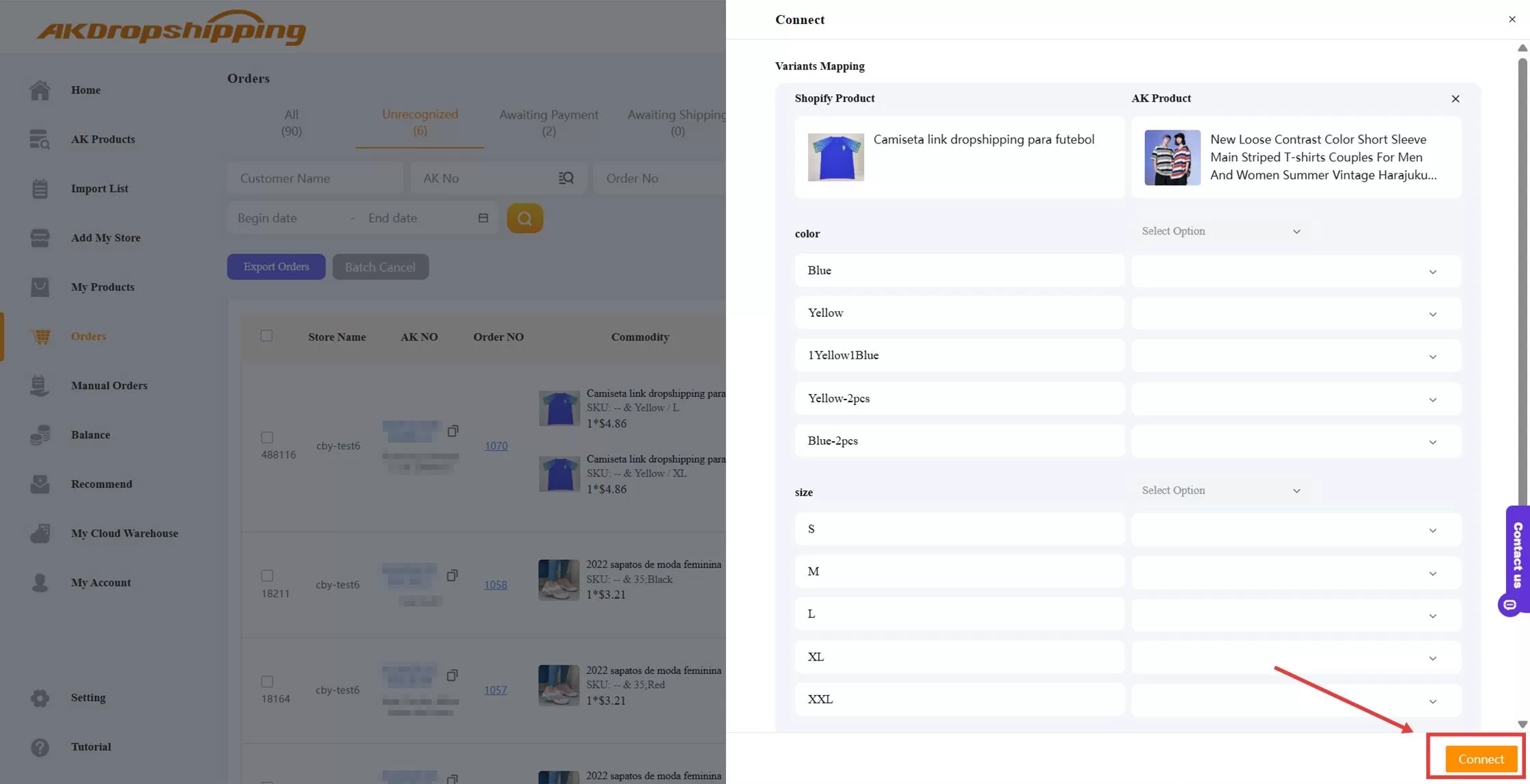
Connect Panel
Note: Once done, the mapped order will automatically move to the Orders - Awaiting Payment section.
Method 2: Mapping via Product Link
Click the product link provided in the quotation to open the product interface
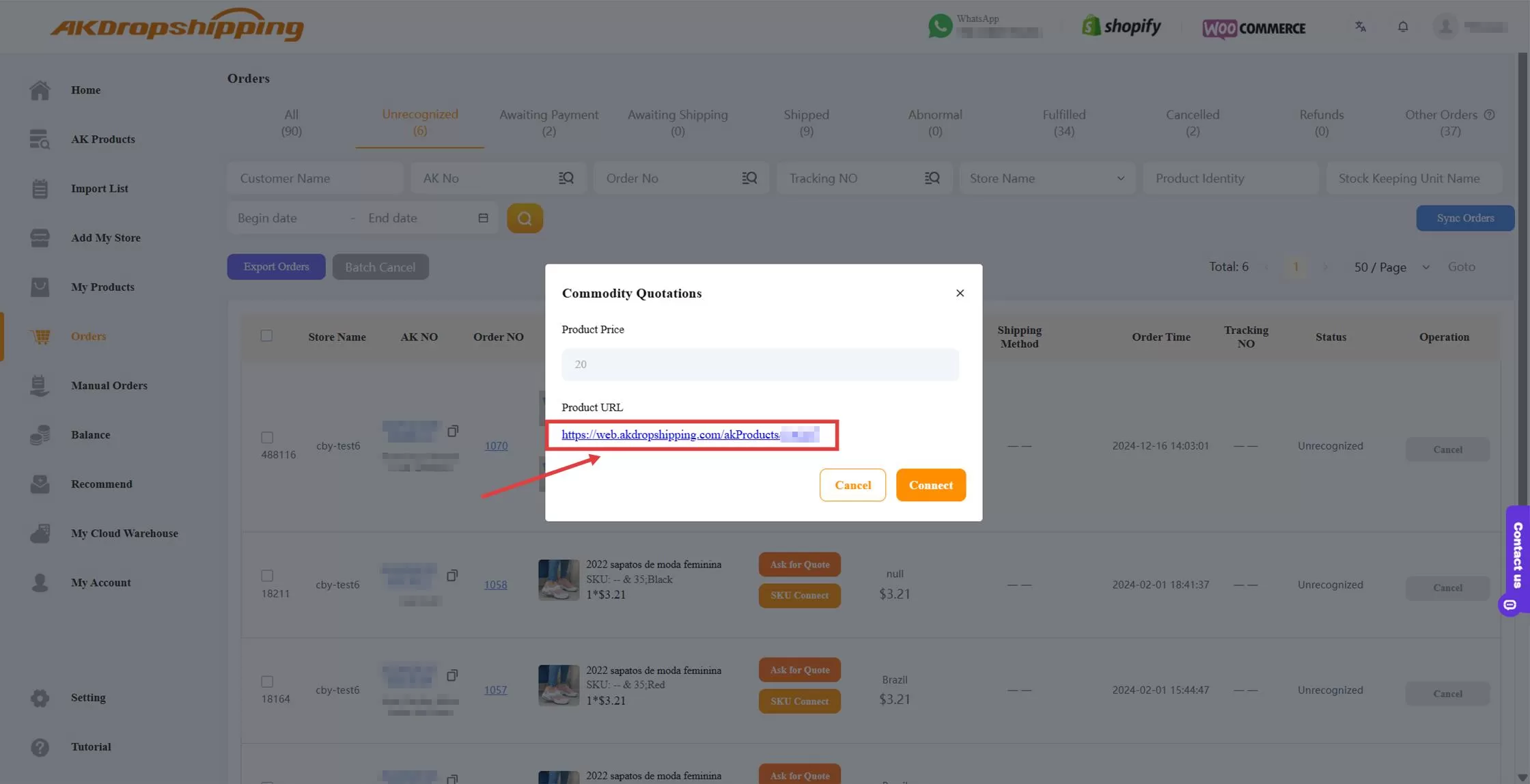
View Quote Panel - Click the Link
Click the Connect button, then select Add Your Product
Note: If you have multiple stores linked to AK, select the relevant store in the top right corner
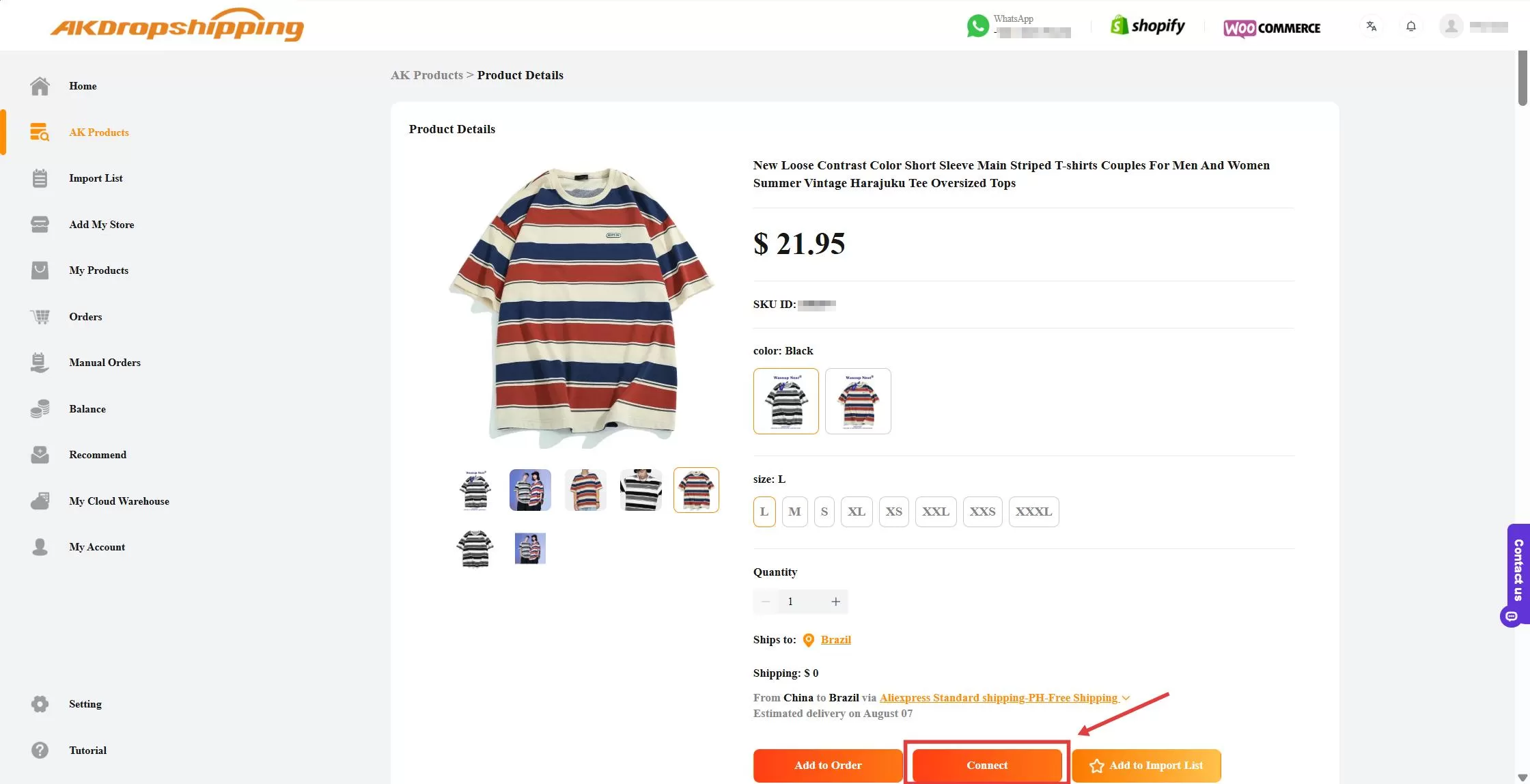
Product Interface - Connect
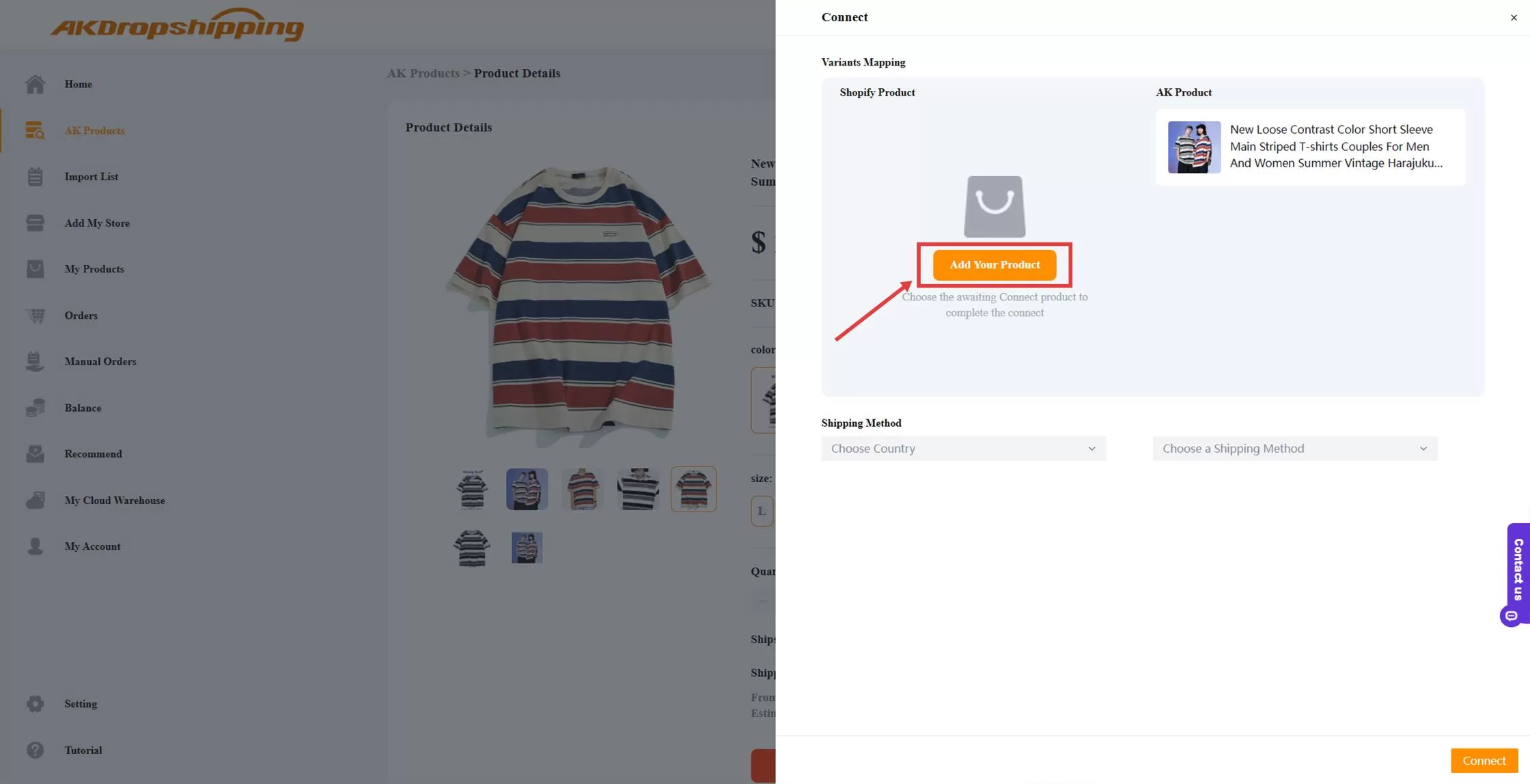
Product Interface - Add Your Product
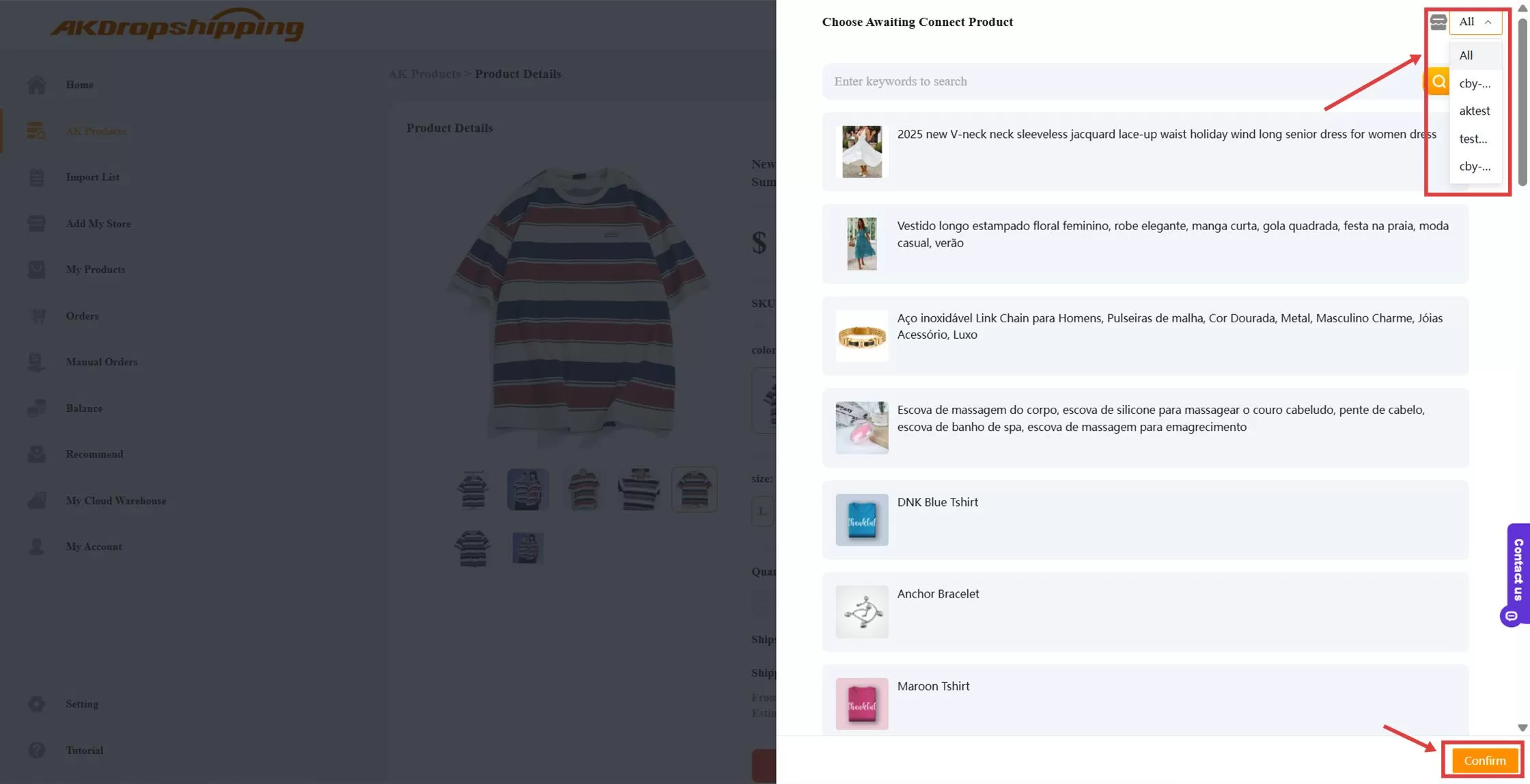
Product Interface - Select the Store and the Product
Choose the product you want to map
Match the corresponding SKUs between your product and AK product
Choose your destination country and preferred shipping method
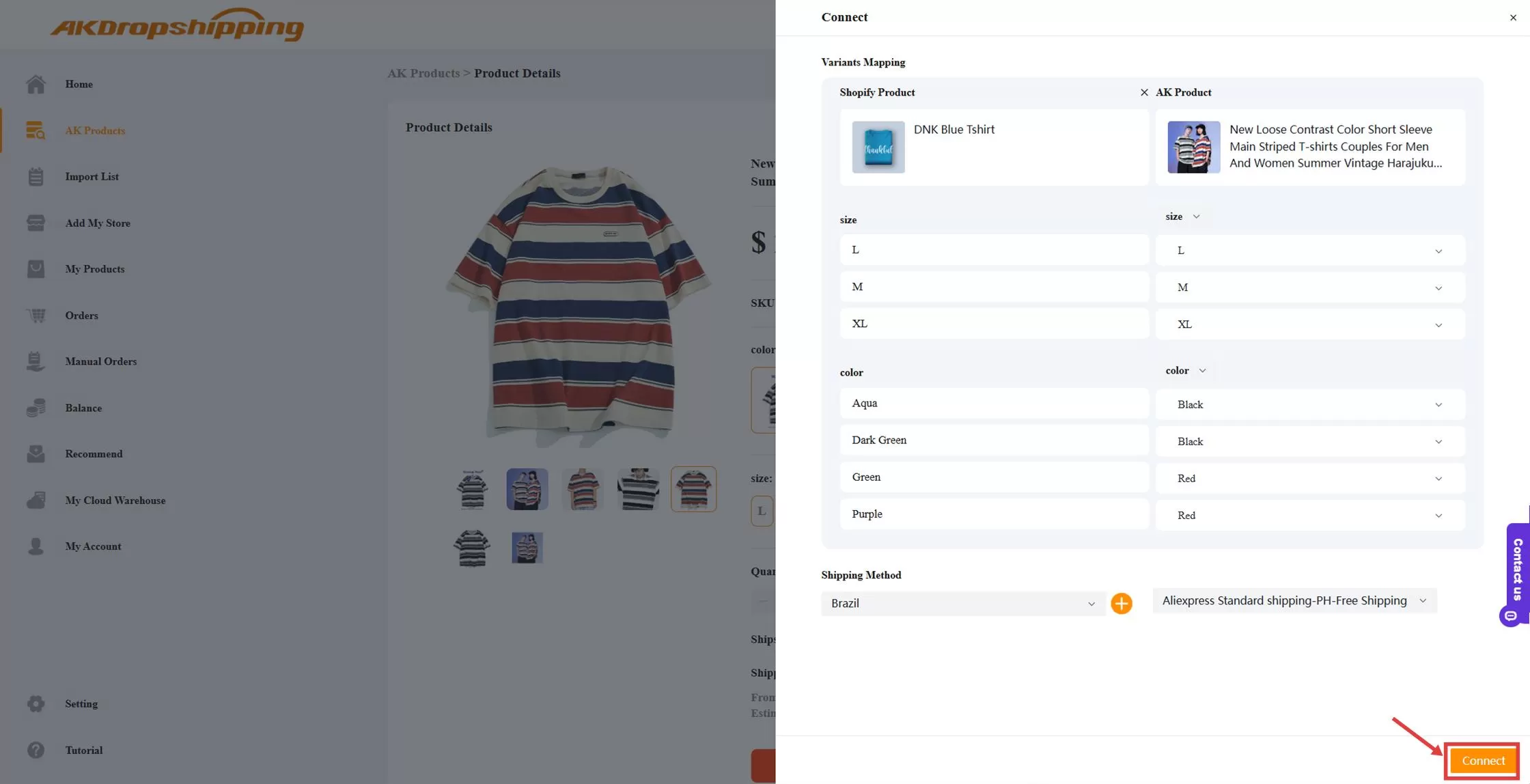
Product Interface - Connect Panel
Click Connect to complete the connection
Method 3: Mapping via ''My Products'' Section
Go to My Products - Awaiting Connect section from the left-hand menu
Locate the product you want to connect
Click the connect icon
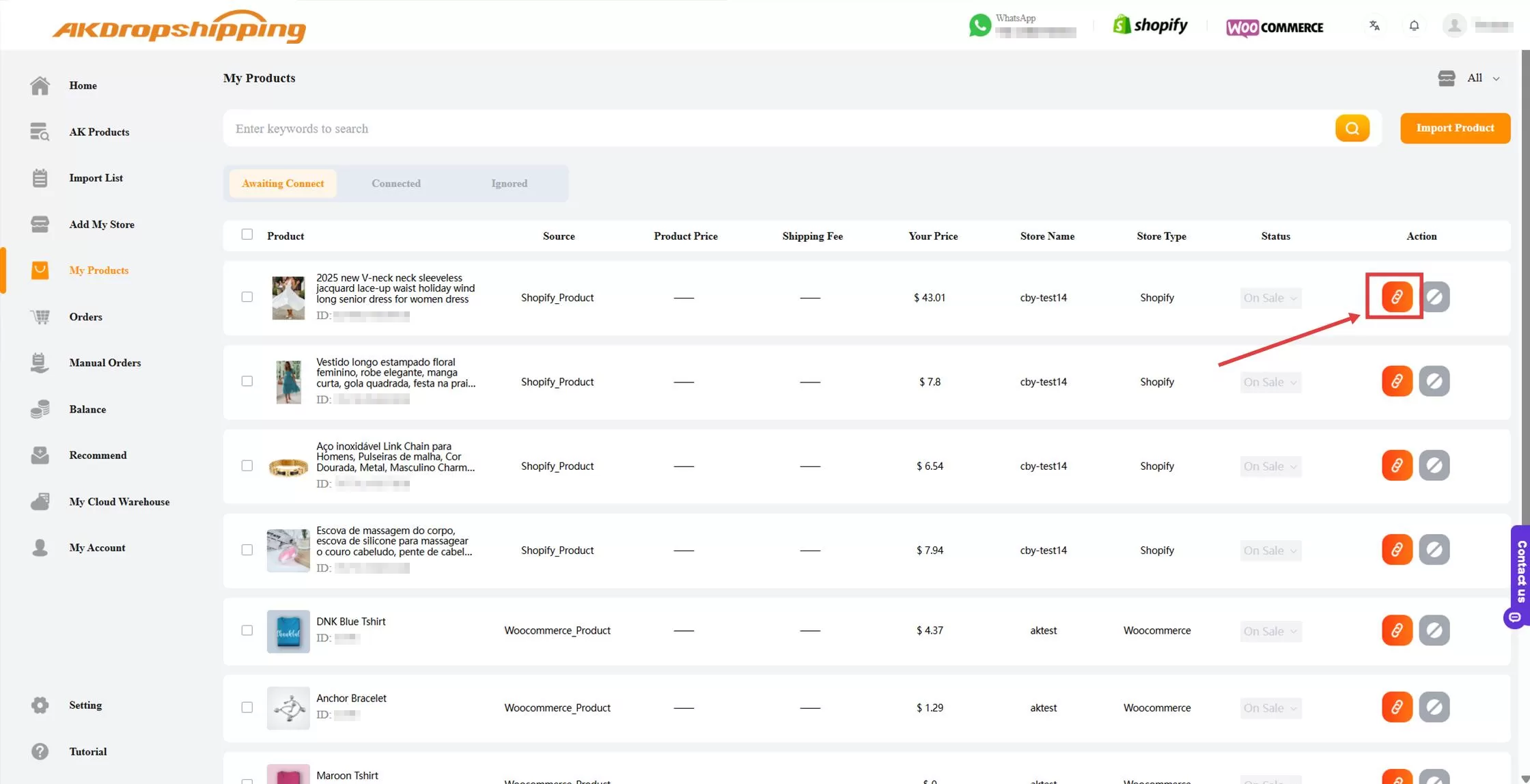
My Products - Awaiting Connect
Paste the product link provided by your salesman and click the search icon
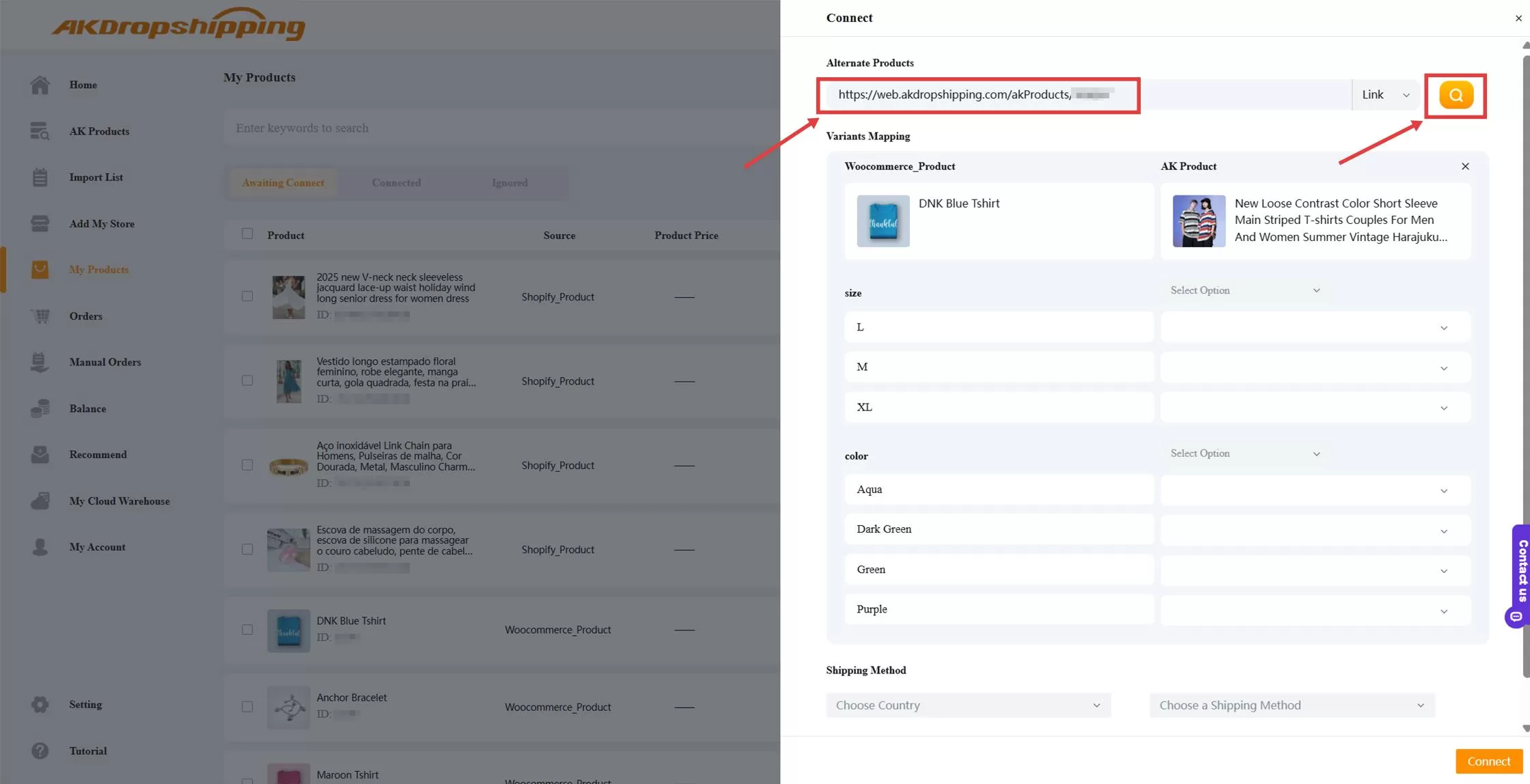
My Products - Connect Panel
Follow the prompts to complete the variant mapping process
Note: Once mapping is complete, the product will be linked with AK Dropshipping, and future orders will be processed automatically.

