
AK allows you to create manual orders by uploading an Excel file ideal for dropshippers using platforms like eBay, Amazon, or any store not yet integrated with AK.
Integrated Store:
Follow the steps below to create manual orders.
Step 1: Go to Manual Order Section
After logging in to your AK account, go to Manual Orders section.
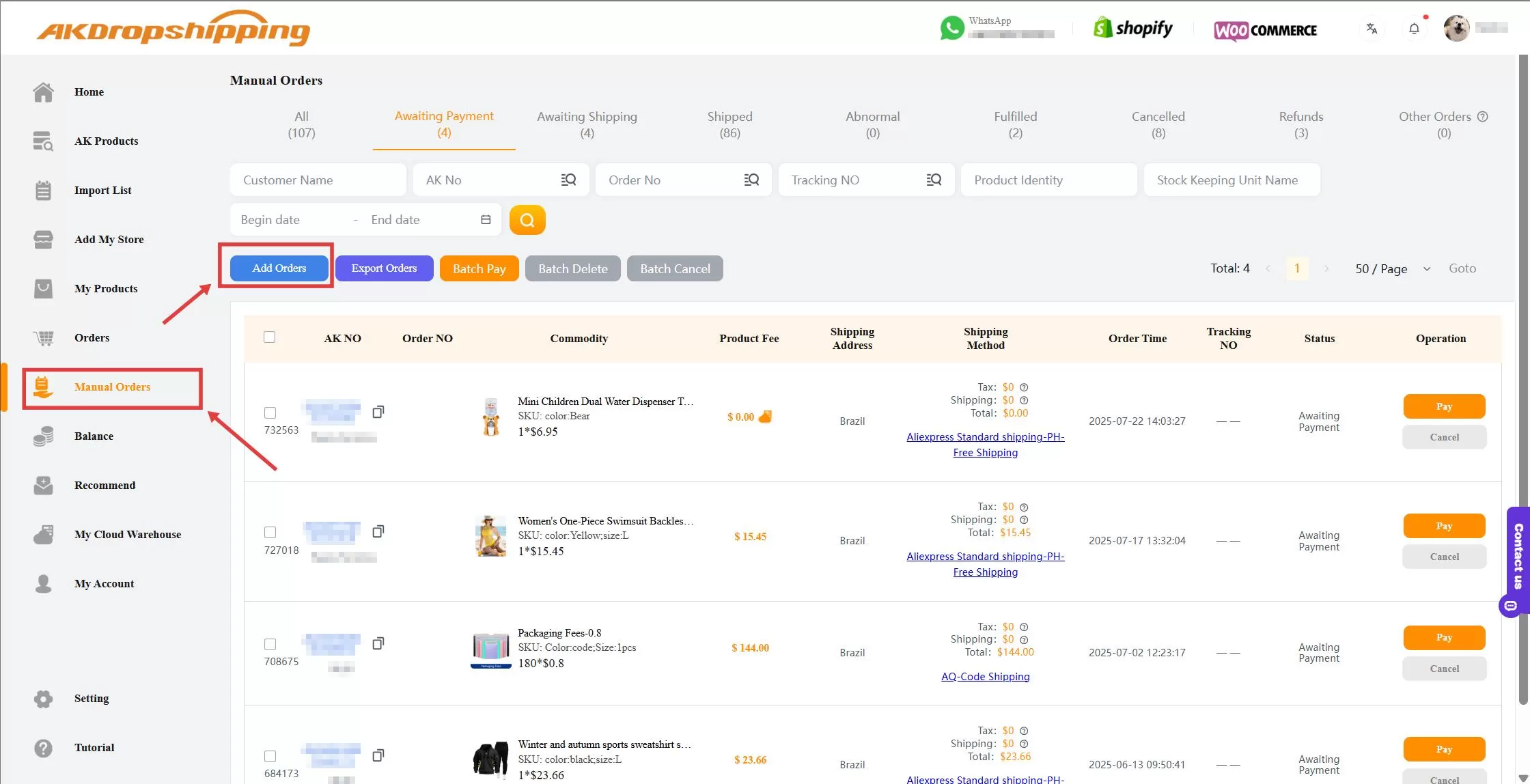
Manual Orders
Step 2: Download the Excel Template
Click the Add Orders button and you will see the import order panel. Then, click the Download button to download the Excel Order Template.
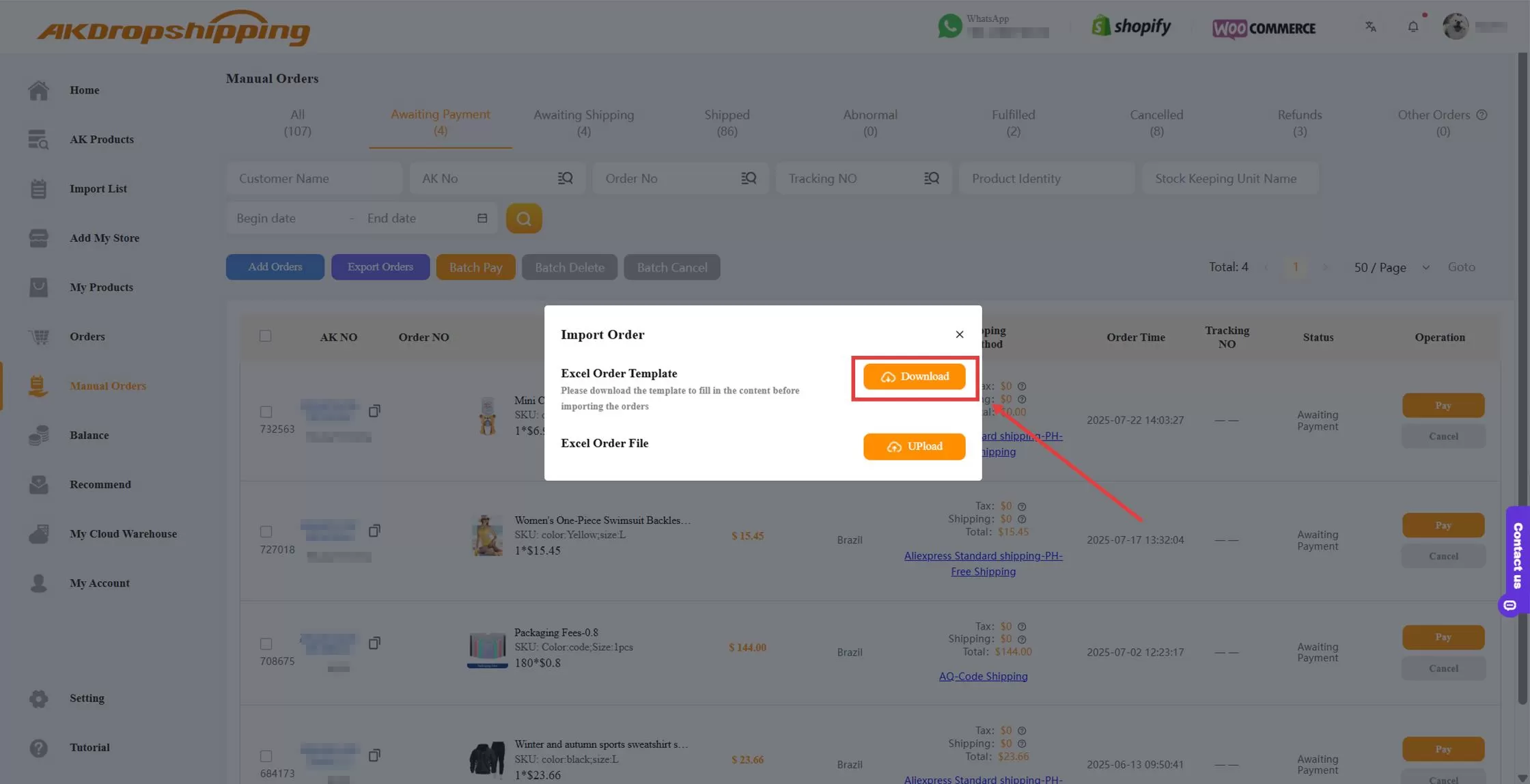
Import Order - Download
Step 3: Fill in the Excel File
Open the downloaded Excel file and enter the required order details.
Important for Brazilian Customers:
If your order is being shipped to Brazil, make sure to provide the recipient’s full name and correct CPF or CNPJ that matches the name. Without this, we will not be able to generate a tracking number.
For Other Countries:
If you have a tax number, fill it in. If not, you may leave it blank.
Note: The only field that can be fictional is order_no — all other information must be accurate.

Excel Order Template
Additional Tips:
Product ID & SKU ID:
Go to AK Products and click the product you want. You’ll find the Product ID at the top of the page, and the SKU ID below the price.
Shipping Method:
Copy the shipping method above the button paste it into the appropriate column in the Excel file. Make sure there is no space after entering.
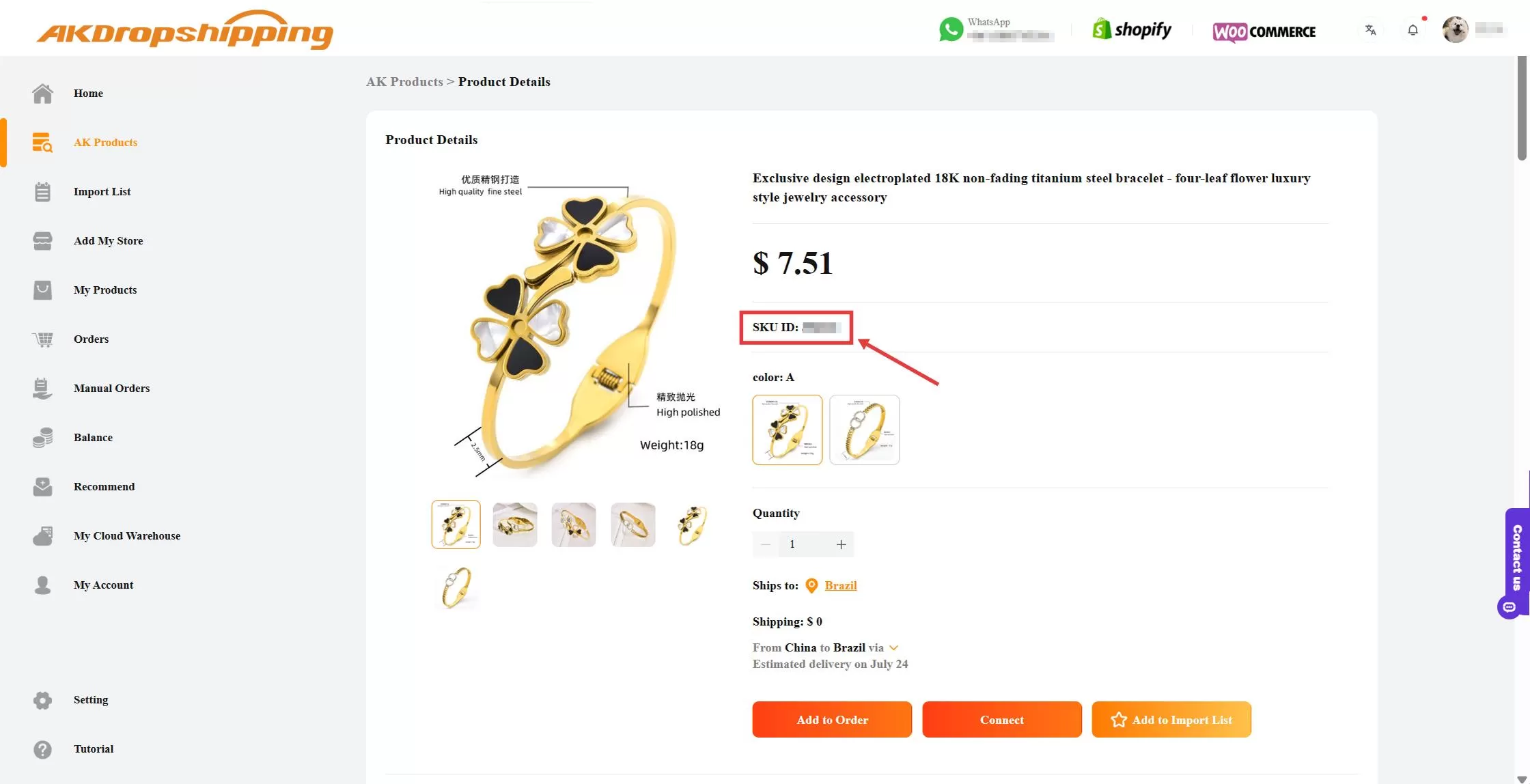
AK Products
Step 4: Upload the Excel File
Return to the Manual Orders page and upload your completed Excel file.
Once uploaded, your orders will be processed for fulfillment.
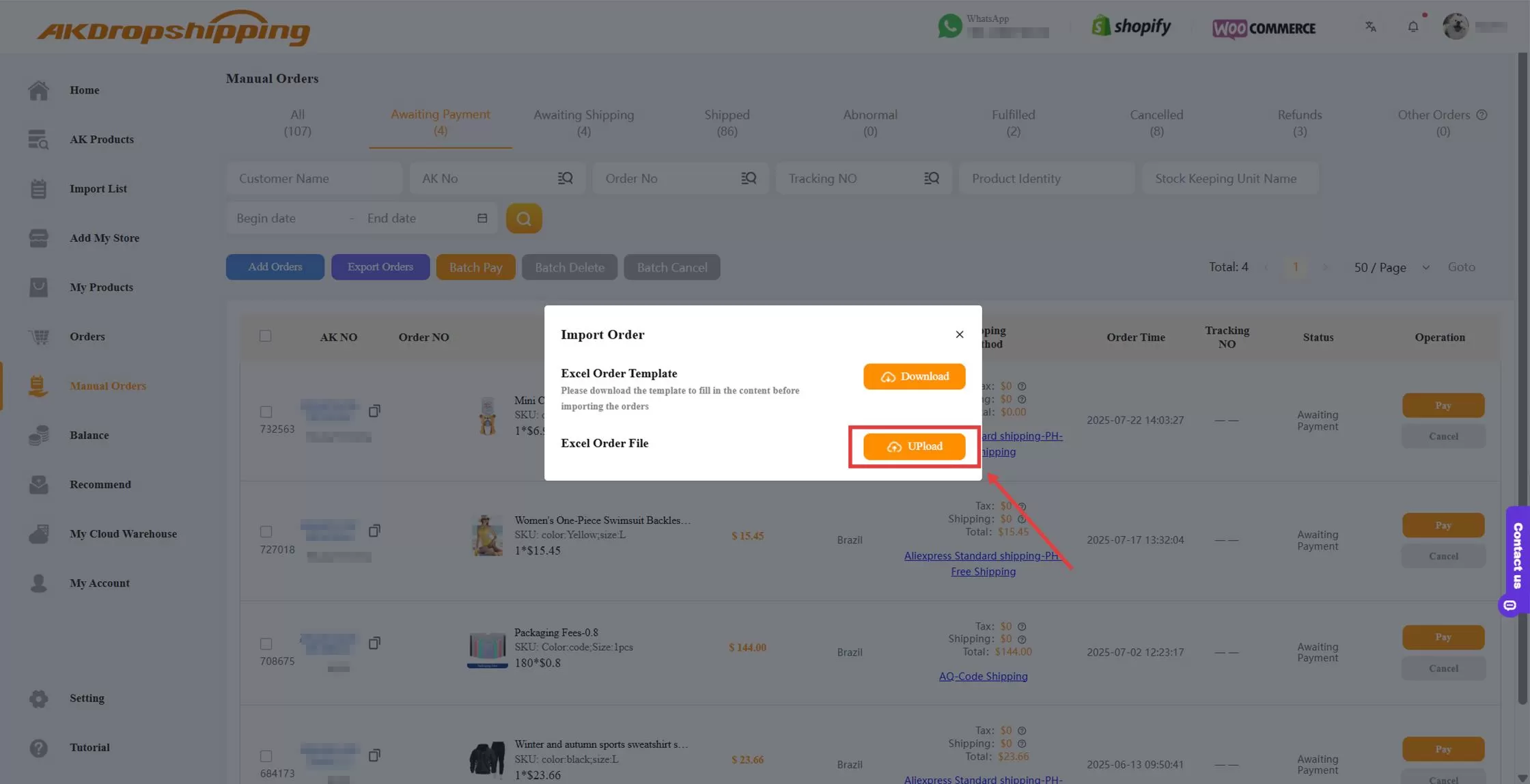
Import Order - Upload

